
Find all documentation for FaxStore Hosted - powered by TurboNode
In some cases, a manual login to the server that FaxStore operates on is needed to perform some actions. For example, editing the configuration file or downloading backups. This page will take you through the steps to access the server. First of all to seamlessly browse files we recommend using and downloading [WinSCP](https://winscp.net/eng/download.php). To log in with [WinSCP](https://winscp.net/eng/download.php) simply click "New Site" and fill out the details required 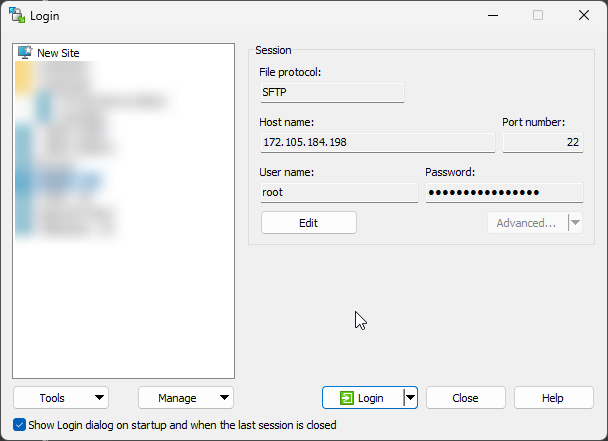 Then navigate to `/home/faxstore` to access FaxStore's files. If you've made edits to the configuration files be sure to restart the server (which will also restart FaxStore) after saving the file to make the changes live.
This guide will take you through the basics of how FaxStore Hosted plans work with TurboNode to create a streamlined experience with no complicated setup or configuration files. ### What is FaxStore? Like other e-commerce pre-made websites, FaxStore is designed to be the best in what it does. FaxStore all-in-one e-commerce platform that allows you to run your business your way! With integrations with many platforms like Discord, Google, Tebex, PayPal, Stripe, and many more getting set up and earning money through your favourite services is never easier. As FaxStore is hosted and controlled by you there are no hassles with making changes or running the operation how you want it to be ran. FaxStore is primarily aimed at merchants and businesses that sell digital goods online and also supports other types. Here's a list of the item types supported: - Paid digital goods - Free digital downloads - Paid digital goods with Discord role requirements - Subscriptions - Pre-orders With a comprehensive staff and management panel you can easily take charge of your data, figures, and assets with FaxStore. Don't pay for a service and have your data taken by larger corporations. ### Requirements FaxStore has some basic prerequisites to be able to fully use the store. - You'll need a domain name (like example.com) - A PayPal Business, Stripe, or Square account is desired to accept payments - A Weblutions account will need to be linked to TurboNode ### First Time Setup When you first purchase a FaxStore server you'll get emailed a setup link after a few minutes where you'll be able to complete the FaxStore setup by filling in some needed data and configuring your store! 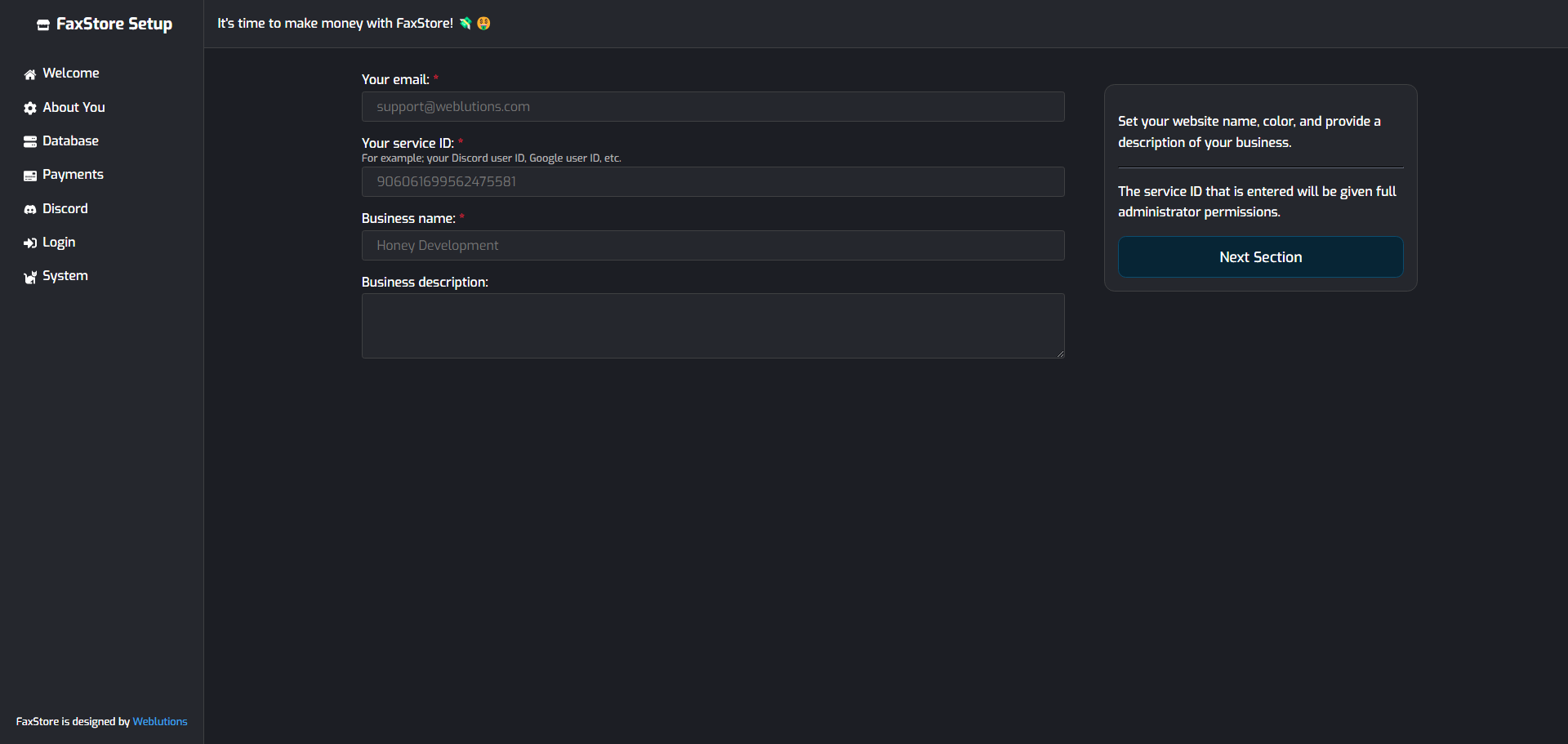 Once you complete the setup your store is ready to use, just like that! Time to enjoy FaxStore.
At times FaxStore could experience errors that may require manual input. This is rare but can occur from system corruptions or FaxStore setup errors. With this, you may be required to enter the operating system and do some troubleshooting. For FaxStore servers, we recommend reaching out to our support team if you're inexperienced in accessing the system. To access the system we can use a program like [Termius](https://termius.com/download) and just like with [Linux servers](/linux/quickstart-guide#login-via-command-line) FaxStore servers are accessed in the same way. :::info FaxStore will automatically start when the server is (re)booted. Generally there's no need to manually stop and start the store. Reach out to support if you're unsure. ::: Insert `ssh root@SERVER_IP` into the Termius address bar. You can find the server's IP address and password on your server's information page. 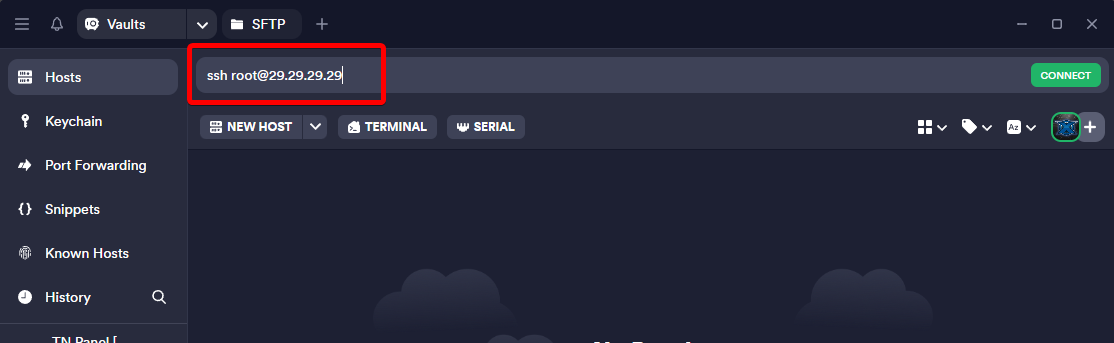 Typically FaxStore operates within a [screen session](#) on the server which is like having a command prompt window left open if you're on Windows. With FaxStore Hosted all faxstore instances will be under the `faxstore` screen label. Below are some basic commands to access the FaxStores program console and how to start FaxStore manually. To connect to the FaxStore screen session you have to reattach to it via the command line. This command will reattach you to the FaxStore session ``` screen -r -d faxstore ``` Or to create a faxstore screen session use ``` screen -S faxstore ``` Once in the screen session, you can navigate to the FaxStore directory by using the change directory command ``` cd /home/faxstore ``` And finally, to start FaxStore, all that needs to be run is the node command ``` node . ``` FaxStore should now start without any issues or it will present an error if there's one.