
New to Linux? Find easy guides for software and usage.
# Using acme.sh to Secure Your Server with Free SSL This guide shows you how to issue and manage SSL certificates using **acme.sh**, a lightweight alternative to Certbot for working with Let's Encrypt. If you're already using our [Certbot with Nginx guide](https://docs.turbonode.co/linux/certbot), this is an alternative method that avoids installing Python dependencies and uses pure bash. --- ## Why Use acme.sh? - No dependencies (pure bash) - Lightweight and portable - Supports DNS and webroot challenge methods - No need for system packages like `certbot` or `python3-certbot-nginx` --- ## Installation Install acme.sh as root: ```bash curl https://get.acme.sh | sh source ~/.bashrc ``` Make sure the command is available in your shell: ```bash alias acme.sh=~/.acme.sh/acme.sh ``` --- ## Issue a Certificate :::info Make sure you have an A Record pointing to the server before issuing the SSL. ::: Use the `--issue` command with your domain and the correct webroot path (same as Nginx’s root): ```bash acme.sh --issue -d your.domain.com -w /var/www/html ``` This places challenge files in your webroot for HTTP verification. --- ## Renew Certificates acme.sh installs a cron job by default. To manually renew: ```bash acme.sh --renew -d your.domain.com ``` Use `--force` if you want to renew immediately. --- ## Install the Certificate Install the certificate to Nginx’s paths and reload the web server: ```bash acme.sh --install-cert -d your.domain.com --key-file /etc/ssl/private/domain.key --fullchain-file /etc/ssl/certs/domain.pem --reloadcmd "systemctl reload nginx" ``` Make sure these paths match your Nginx SSL config. --- ## Fix: Let's Encrypt OCSP Must-Staple Error As of May 2025, Let's Encrypt no longer supports the Must-Staple flag. If you see this error: ``` Signing failed. Finalize code was not 200. { "type": "urn:ietf:params:acme:error:unauthorized", "detail": "Error finalizing order :: OCSP must-staple extension is no longer available: see https://letsencrypt.org/2024/12/05/ending-ocsp", "status": 403 } ``` ### To fix: 1. Open your domain’s acme.sh config: ```bash nano ~/.acme.sh/your.domain.com/your.domain.com.conf ``` 2. Delete or set this line: ```ini Le_OCSP_Staple='0' ``` 3. Renew the certificate: ```bash acme.sh --renew -d your.domain.com ``` 4. Reload Nginx: ```bash systemctl reload nginx ``` --- ## Alternative: Start Fresh ```bash acme.sh --remove -d your.domain.com acme.sh --issue -d your.domain.com -w /var/www/html ``` Then reinstall the certificate. --- ## Disable Must-Staple for Good To make sure it doesn’t happen again: ```bash export ACME_OCSP_MUST_STAPLE=0 ``` --- ## Summary - `acme.sh` is a clean alternative to Certbot for issuing SSL certificates. - Works perfectly with Nginx and no Python packages required. - Includes a fix for the OCSP Must-Staple error now deprecated by Let's Encrypt. --- ## Related Guides - [Certbot Guide](https://docs.turbonode.co/linux/certbot) - [Let’s Encrypt: Ending OCSP Must-Staple Support](https://letsencrypt.org/2024/12/05/ending-ocsp) - [acme.sh Wiki](https://github.com/acmesh-official/acme.sh/wiki) - [TurboNode Quickstart Guide](https://docs.turbonode.co/linux/quickstart-guide)
Certbot is a free, open-source software tool for automatically using Let’s Encrypt certificates on manually administrated websites to enable HTTPS. It's operated by a non-profit based in San Francisco. ## How to Install To install Certbot run the following commands depending on your distribution. **Debian & Ubuntu** ```sh sudo apt update sudo apt install certbot python3-certbot-nginx ``` **AlmaLinux & CentOS** ```sh sudo dnf install epel-release -y sudo dnf install certbot python3-certbot-nginx ``` ## Usage To install a certificate on a NGINX-based web server you can run the below command. ```sh sudo certbot --nginx -d example.com ```
So you've just bought a Linux-based server through TurboNode? It's time to learn all about Linux and become a champion of the operating system. ### What is Linux? Just like other operating systems like Windows or MacOS, Linux is another operating system. It's one of the most popular operating systems in the world as systems like Andriod also run Linux. It's used in the 500 largest supercomputers in the world and has many distributions, the most popular being Ubuntu followed by Debian. Unlike Windows, most Linux Distributions are terminal based and don't have a visual desktop unless that specific version is installed. ### What's a Linux Distribution? Linux can come in many forms and versions, some are differentiated by visual design, backend changes, or compatibility. These are referred to as a Distribution or "Distro". Although TurboNode doesn't offer base Linux we offer many Distributions and are always open to add more on request. Some of our current options include: - AlmaLinux - CentOS - Debian - Ubuntu ## First Login Just like how we'd use Remote Desktop for Windows we also need to use a program to access a Linux server. These are the programs we recommend. - For the terminal and command line we recommend [Termius](https://termius.com/download) and; - For the ability to seamlessly browse files we recommend [WinSCP](https://winscp.net/eng/download.php) ### Login via Command Line With Termius the "Access" command from the [TurboNode Panel](https://panel.turbonode.co) can be used to connect to the server. 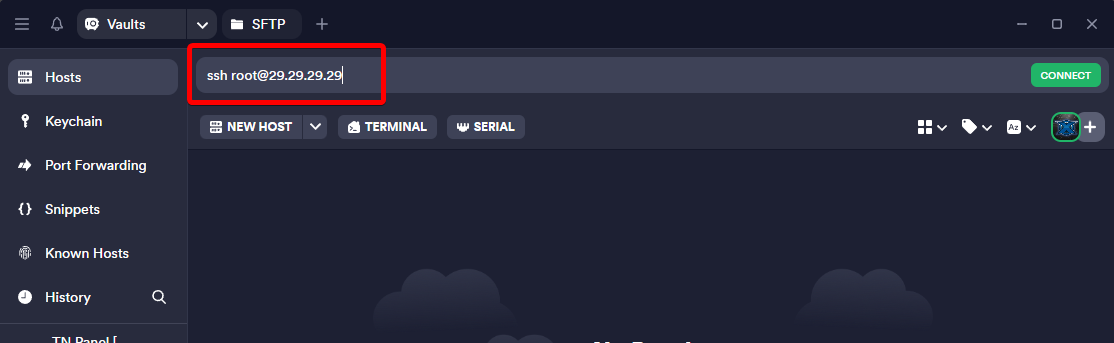 ### Login via WinSCP (Remote File Explorer) To log in with [WinSCP](https://winscp.net/eng/download.php) simply click "New Site" and fill out the details required 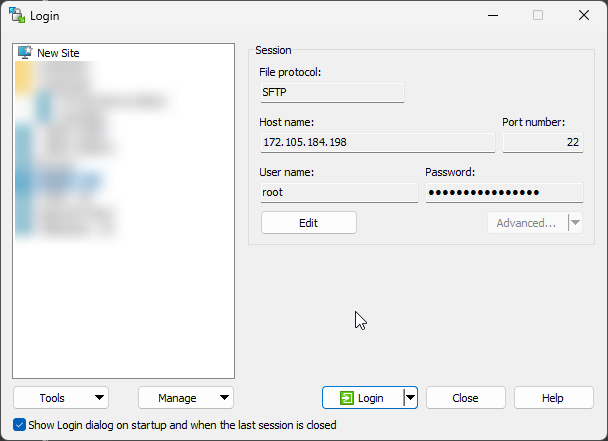 You can also optionally save the login details when you save the site.
MySQL is the world's most popular open-source relational database system. It's partially named after the founder's daughter and is still owned and maintained by the [Oracle Corporation](https://www.oracle.com). ## How to Install The method of installing MySQL may vary per [Linux distribution](/linux/quickstart-guide#what's-a-linux-distribution?). To install MySQL run the relevant command on your operating system **Debian & Ubuntu** ```bash sudo apt-get update sudo apt install mysql-server ``` **CentOS** ```sh sudo yum update sudo wget https://dev.mysql.com/get/mysql80-community-release-el7-3.noarch.rpm sudo rpm -Uvh mysql80-community-release-el7-3.noarch.rpm sudo yum install mysql-server ``` --- ## Changing MySQL Connection Timeout The default connection timeout may need to be adjusted to fit your program if it makes a small amount of MySQL calls. 1. Navigate to `/etc/mysql/mysql.conf.d/mysqld.cnf` 2. Add the below line to the file under the "Basic Settings" section. ``` wait_timeout = 3153600 ``` 3153600 is 36 days. 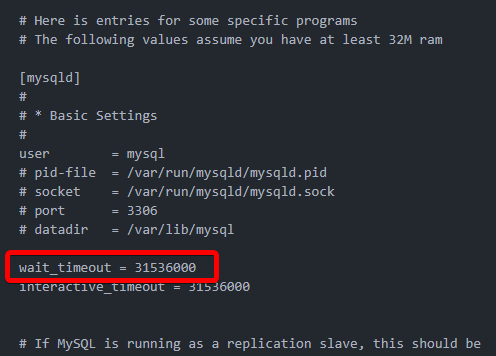 Within this MySQL configuration file, you can also make other changes like allowing outside connections. ## Allowing Outside Connections The ability to allow outside connections to the MySQL server can be toggled in the configuration file for MySQL. Navigate to `/etc/mysql/mysql.conf.d/mysqld.cnf` Here you'll find a `bind-address` setting. Change to your liking - If set to `127.0.0.1` the MySQL server will only allow internal connections - If set to your servers IP address it will also allow outside connections. --- When changes to the MySQL configuration file are made the service will need to be restarted.
Nginx is a web server that can also be used as a reverse proxy, load balancer, mail proxy and HTTP cache. Nginx is the most popular web server in the world. Fun fact; Nginx is pronounced as 'Engine-X'. ## Install NGINX The method of installing MySQL may vary per [Linux distribution](/linux/quickstart-guide#what's-a-linux-distribution?). **Debian & Ubuntu** ```sh sudo apt update sudo apt install nginx ``` **AlmaLinux & CentOS** ```sh sudo yum install epel-release sudo yum install nginx ``` ## Verify Installation To verify you have Nginx installed you can run the version command below. ```sh nginx -v ``` The verification output may look like the below ```sh nginx version: nginx/1.18.0 (Ubuntu) ``` Further, you can verify by navigating to your servers IP address in a browser. Eg; `http://26.26.26.26` and a page like the below should be presented. 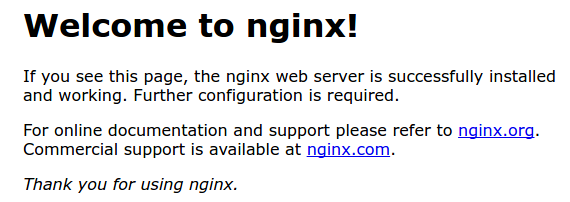 --- To view the status of the web server run `sudo systemctl status nginx`. Each website, proxy, or mail server you run on the server will require a specific configuration, refer to the specific application documentation to see that portion of the setup.
Node.js® is a free, open-source, cross-platform JavaScript runtime environment that lets developers create servers, web apps, command line tools and scripts. To manage NVM on Linux we recommend using [Node Version Manager](https://github.com/nvm-sh/nvm) as it allows you to quickly install and use different versions of node via the command line. ## How to Install There are conventional methods to install Node.js on Linux using default package managers. However, these often install older LTS versions of Node.js and can be painful to uninstall or change. So we recommend [Node Version Manager](https://github.com/nvm-sh/nvm) (NVM). To install NVM use the below command. ```sh sudo apt update wget -qO- https://raw.githubusercontent.com/nvm-sh/nvm/v0.40.1/install.sh | bash ``` This command will install and execute the install script for NVM. ## NVM Usage Here are some common commands for NVM that can be used. For more advanced usage see the NVM [GitHub](https://github.com/nvm-sh/nvm#usage). **View NVM Version** ```sh nvm -v ``` **Install a Node Version**. Change the version as you desire. ```sh nvm install 20.17.0 ``` You can replace the version with `node` to install the latest Node.js version.
PHP is a popular general-purpose scripting language especially suited to web development. Fast, flexible and pragmatic, PHP powers everything from your blog to the most popular websites in the world. ## How to Install The method of installing MySQL may vary per [Linux distribution](/linux/quickstart-guide#what's-a-linux-distribution?). **Debian & Ubuntu** ```sh sudo apt update sudo apt install php-fpm php-mysql ``` Optionally, you can install additional PHP extensions ```sh sudo apt install php-curl php-gd php-mbstring php-xml php-zip -y ``` **AlmaLinux & CentOS** This is a little bit more extensive as we need to install a package manager and enable PHP before installing it ```sh sudo dnf install epel-release -y sudo dnf install https://rpms.remirepo.net/enterprise/remi-release-8.rpm -y sudo dnf module reset php sudo dnf module enable php:remi-8.1 -y sudo dnf install php php-mysqlnd -y ``` ## Verify Installation To verify you have PHP installed you can run the below command to have the output returned. *Note; you may need to restart your terminal application to run the command* ``` php -v ``` The verification output may look like the below, which will also show the version you installed ```sh PHP 8.3.3-1+ubuntu20.04.1+deb.sury.org+1 (cli) (built: Feb 15 2024 18:38:21) (NTS) Copyright (c) The PHP Group Zend Engine v4.3.3, Copyright (c) Zend Technologies with Zend OPcache v8.3.3-1+ubuntu20.04.1+deb.sury.org+1, Copyright (c), by Zend Technologies ```
On this page, we'll show you how to update and upgrade your Linux server to the latest versions and builds. It's highly recommended to use Long Term Support (LTS) releases if upgrading the whole server to a new release. Below you'll find TurboNode's Linux server offerings and steps to update and upgrade them. #### Difference Between Update and Release Upgrade Linux distributions often have an update and upgrade path. Updating the system will generally maintain the release (e.g; Ubuntu 24.xx) build and update packages, and software within the system. This is like how updating Windows 11 would update Windows 11 and not update you to Windows 12. On the other side, there are release upgrades, which will update the whole build, for example moving from Ubuntu 22 to Ubuntu 24, just like how you'd update from Windows 10 to 11. ## Ubuntu If you've ever logged into your Ubuntu server and seen a message like "136 updates can be applied immediately." this means we can perform an update to the system. This will do security patches, software updates, and more within the system. To perform an update run the below commands ``` sudo apt update sudo apt upgrade ``` Afterwards, you can reboot the server with the `reboot` command or through the TurboNode Panel. Release upgrades can be just as easy to perform. However, there are some major things to note before doing it. - Ensure that software you're running on the server will work with the new release, and; - Make sure to backup the server just in case as the system could experience an error and corrupt if something major goes wrong. :::danger Before performing a release upgrade take note of the above! ::: Your system will likely inform you when you log in if a release upgrade is an option. to perform a release upgrade it's just the one command ``` sudo do-release-upgrade ``` You may get warning messages and service messages during the update that require input. --- *Other operating system upgrade documentation coming soon.*