Windows Servers are always changing, find out what matters.
Google Chrome is a popular web browser used globally. It was created and maintained by Google. It was first released in 2008. It was built from freeware in Apple WebKit and Mozilla Firefox. Nowadays, most of the Chrome programming comes from Google's Chromium. :::info All TurboNode Windows Servers come with Chrome already installed on the system for ease of access. ::: ## Get Google Chrome To get Google Chrome you can easily download and install it from Google's Website [google.com/chrome/download](https://www.google.com/intl/en_us/chrome/dr/download) ## Optimise Chrome on Your Server As most people know Google Chrome can be quite demanding for RAM and other resources when running in the background. We recommend enabling memory saver mode on Chrome to prevent Chrome from being as hungry. To turn Memory Saver on or off 1. At the top right, select More and then Settings 2. Navigate to the Performance tab 4. Under Memory toggle Memory saver 5. Optionally, you can change the intensity memory saver 5. Restart Chrome 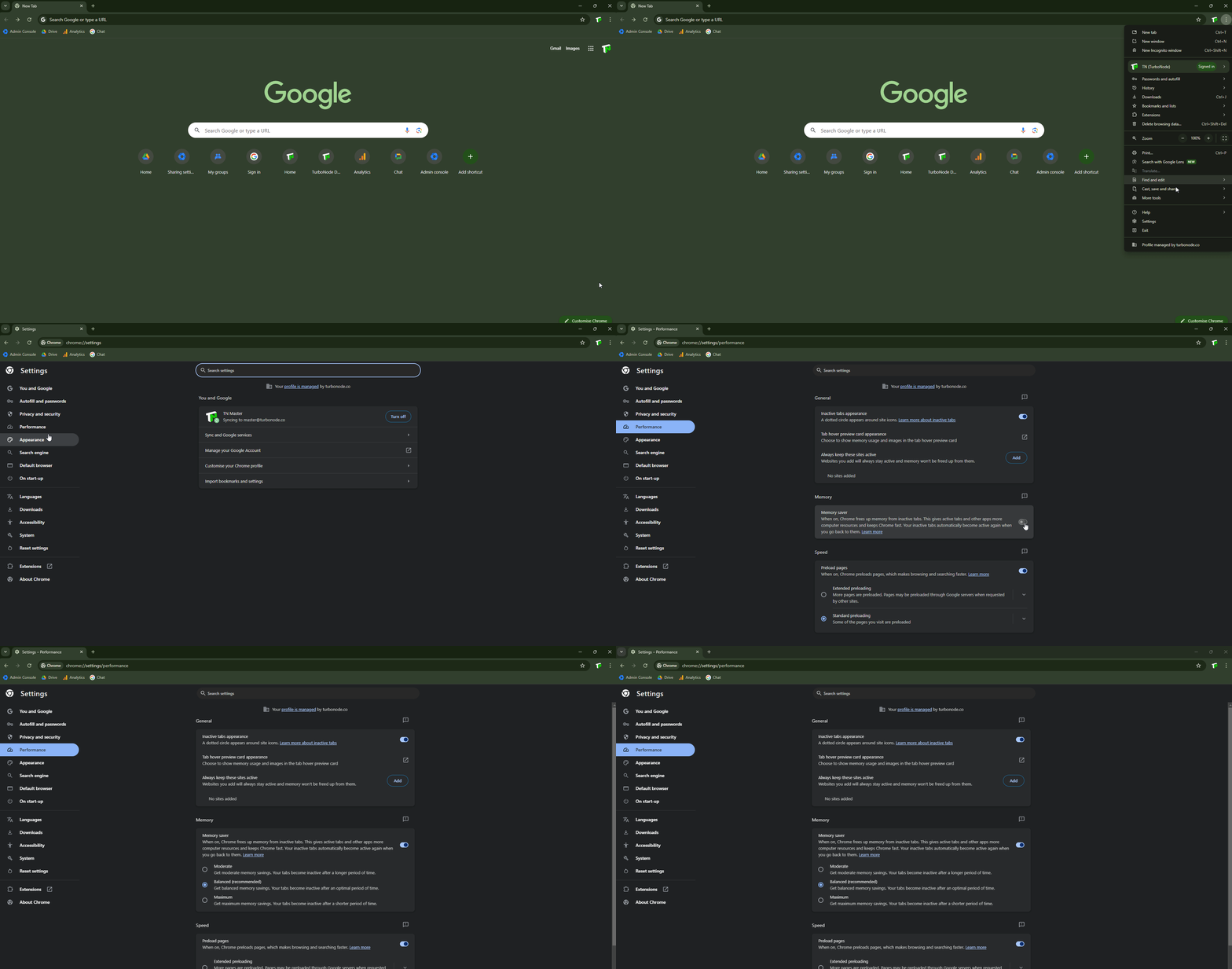
Is your Windows server randomly shutting down or restarting? This might be due to your server evaluation license expiring causing this random activity. This may cause Windows to shut down or restart every couple of hours and is likely to start occurring 180 days after ordering your server. ## Why Does This Happen? To comply with Microsoft's guidelines TurboNode doesn't ship Windows Servers with a license which makes the server an 'Evaluation Copy' of the Windows Server which technically only is valid for 180 days from the first boot (or from the date of order). When the evaluation expires the Windows Server will start being inconvenient for use by randomly restarting or shutting down the server as a form of protest to have a license applied to it. This can be fixed in a couple of ways. :::info From 20th September 2024 our Windows Servers come with this script pre-installed on your system. This means you shouldn't have to do anything to renew your license. ::: ## How to Resolve There are two ways that can resolve the evaluation expiry on a Windows Server. 1. Buy a version of Windows Server 2022 Standard from Microsoft [here](https://www.microsoft.com/d/windows-server-2022-standard-cal/dg7gmgf0d6m5) 2. Going through Microsoft may only offer bulk buying licenses in some regions. So other places include [cjs-cdkeys.com](https://www.cjs-cdkeys.com/products/Windows-Server-2022-Standard-CD-Key-%28Digital-Download%29.html?gad_source=1&gclid=CjwKCAjwodC2BhAHEiwAE67hJOABAubVv7x0RV--YV6UpUikwj59WKmZV-QSFkxrl8KWGT09m0ERmhoC3UkQAvD_BwE) or [g2a.com](https://www.g2a.com/windows-server-2022-standard-pc-microsoft-key-global-i10000266811003?suid=b9258a66-2fc5-4ffb-aac1-a08ab9cddef1). *Take note these come with the risks of being third party.* 3. Run the below command in the command prompt to reissue the evaluation copy ```sh slmgr -rearm ``` *This command will get you another 180 days for a total of 3 years of evaluation. After the three years you'll have to obtain a license from the above resources or reinstall Windows and start the 3 years of evaluation again.* ### Create Windows Task Off the back of step three above, a task can be created to automatically run the command when needed by using Task Scheduler. 1. Open command prompt 2. Run the below commands in Powershell to download the scripts and set the schedule. *Only run these commands when the server is first built or, when the license needs to be reissued as the schedule needs to operate on time.* ```sh curl -o "C:UsersAdministratorRearm Windows License.bat" https://iso-cdn.turbonode.co/windows/rearm.bat curl -o "C:UsersAdministratorRearm Windows License Dialog.vbs" https://iso-cdn.turbonode.co/windows/rearmdialog.vbs schtasks /create /tn "TurboNode Rearm Windows License" /tr "C:UsersAdministratorRearm Windows License.bat" /sc daily /mo 181 /st 10:00 ``` Once complete a created task is created in [Task Scheduler](https://en.wikipedia.org/wiki/Windows_Task_Scheduler). 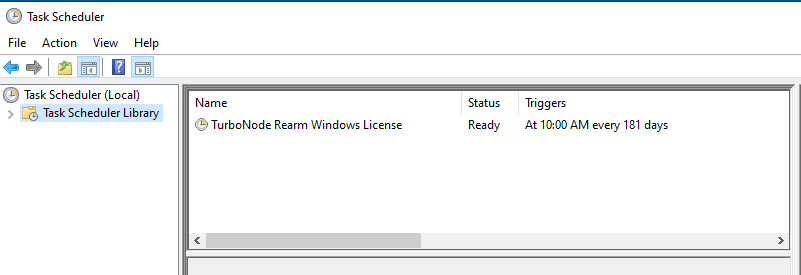
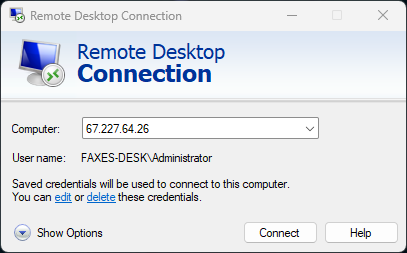
New to managing a Windows Server? This is the quickstart guide for you. If you use Windows as your own operating system you'll find it very similar if not the same. ## What is a Windows Server? A Windows Server is a series of server operating systems developed by Microsoft. Unlike regular Windows operating systems that are designed for personal or home use (like Windows 10 or 11), Windows Server is designed to handle corporate networking, databases, applications, and web hosting. ## Windows Server Versions [TurboNode]{#13cb00} only offers the most recent 2022 version of Windows Server and can install the 2019 version on request. However, these are all the releases of Windows Servers: - Windows Server 2000 - Windows Server 2003 - Windows Server 2008 (and R2) - Windows Server 2012 (and R2) - Windows Server 2016 - Windows Server 2019 (offered by [TurboNode]{#13cb00}, *on request*) - Windows Server 2022 (offered by [TurboNode]{#13cb00}) *The reason we don't offer the 2019 build at checkout is due to TurboNode wanting on offer the most recent and supported version of a Windows Server. 2019 can be installed for you on request though.* ## First Login Windows servers are pretty straightforward to log in to. By default, Windows comes with a program installed by default called Remote Desktop Connection. If this isn't installed on your system it can be obtained on the Microsoft Store. If you're on another operating system like Linux, you'll need to find a Windows Remote Desktop Connection application. Now, how do you access your Windows server? 1. Open Remote Desktop Connection 2. Under the 'Computer' field enter your server's IP address and click connect 3. You'll be asked for a username and password. TurboNode servers have the same default username of `Administrator` 4. Enter the password that's displayed on the [client panel](https://panel.turbonode.co) 5. You should now see a Windows Desktop if your login details are correct. Enjoy Windows.