New to managing a Windows Server? This is the quickstart guide for you. If you use Windows as your own operating system you'll find it very similar if not the same.
What is a Windows Server?
A Windows Server is a series of server operating systems developed by Microsoft. Unlike regular Windows operating systems that are designed for personal or home use (like Windows 10 or 11), Windows Server is designed to handle corporate networking, databases, applications, and web hosting.
Windows Server Versions
TurboNode only offers the most recent 2022 version of Windows Server and can install the 2019 version on request. However, these are all the releases of Windows Servers:
- Windows Server 2000
- Windows Server 2003
- Windows Server 2008 (and R2)
- Windows Server 2012 (and R2)
- Windows Server 2016
- Windows Server 2019 (offered by TurboNode, on request)
- Windows Server 2022 (offered by TurboNode)
The reason we don't offer the 2019 build at checkout is due to TurboNode wanting on offer the most recent and supported version of a Windows Server. 2019 can be installed for you on request though.
First Login
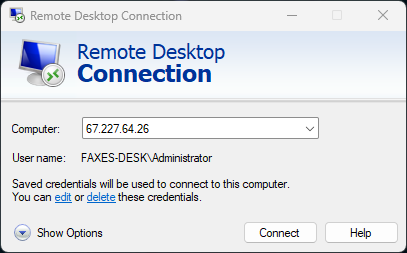
Windows servers are pretty straightforward to log in to. By default, Windows comes with a program installed by default called Remote Desktop Connection. If this isn't installed on your system it can be obtained on the Microsoft Store. If you're on another operating system like Linux, you'll need to find a Windows Remote Desktop Connection application.
Now, how do you access your Windows server?
- Open Remote Desktop Connection
- Under the 'Computer' field enter your server's IP address and click connect
- You'll be asked for a username and password. TurboNode servers have the same default username of
Administrator - Enter the password that's displayed on the client panel
- You should now see a Windows Desktop if your login details are correct. Enjoy Windows.